One thing that’s annoyed me for yonks is how slow Emacs is when displaying images. Emacs has never been fast on this point, exactly, and has gotten better over the years — but at the same time, image sizes have exploded. In the bad old days, images were just a couple of megabytes, but with modern cameras, images can be 25MB, easily.
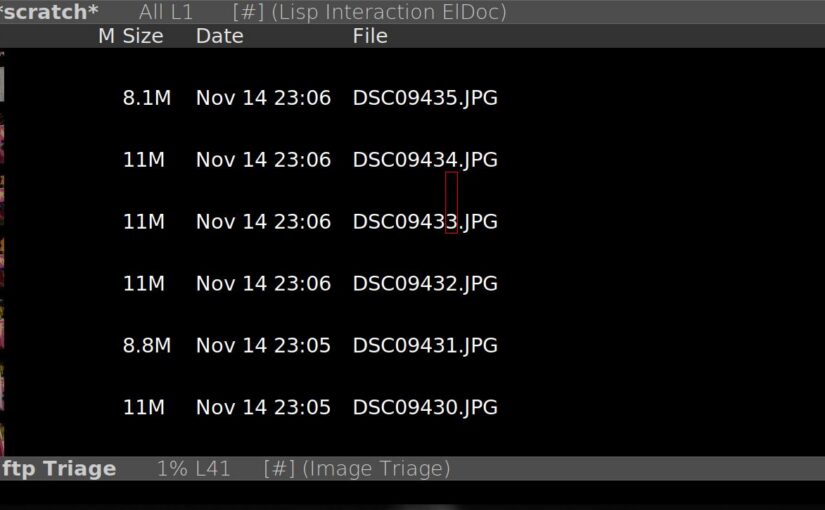
So now it’s really painful to page through directories of images:
It takes half a second for each image, and if you don’t find that annoying, you’re way more patient than I am.
Those are from my camera, and I’ve adjusted the image size down to “just” 10MB — because it’s just too painful to deal with 25MB images all around. For instance, when posting a 25MB file to WordPress, it uses about half a minute to scale it down to various sizes. Not fun.
This has, in the past, led me to use other non-Emacs ways of looking through images. So horrible! When you find images you want to copy an image somewhere else, for instance, you have to go through all these non-ergonomic contortions… It’s a complete nightmare! Have you people seen non-Emacs interfaces!? They’re awful!
Now, Emacs has things like image-dired that will go through a directory and create thumbnails, which makes things more liveable. But it does that by creating thumbnails up-front, which I just don’t like. And it doesn’t really help with the display of the images themselves when you want to look at them.
Now, what’s the baseline here?
larsi@corrigan:/home/sony/ftp$ time djpeg DSC09468.JPG >/dev/null

real	0m0.128s
Well, just decoding one of these 10MB images takes more than a tenth of a second. Emacs also resizes images before display, so this is perhaps a more fair comparison:
larsi@corrigan:/home/sony/ftp$ time convert -resize 1500x DSC09468.JPG jpg:- >/dev/null

real	0m0.264s
So — large images just take a lot of time anyway, and there’s not much we can do about that.
But what if we cheated?
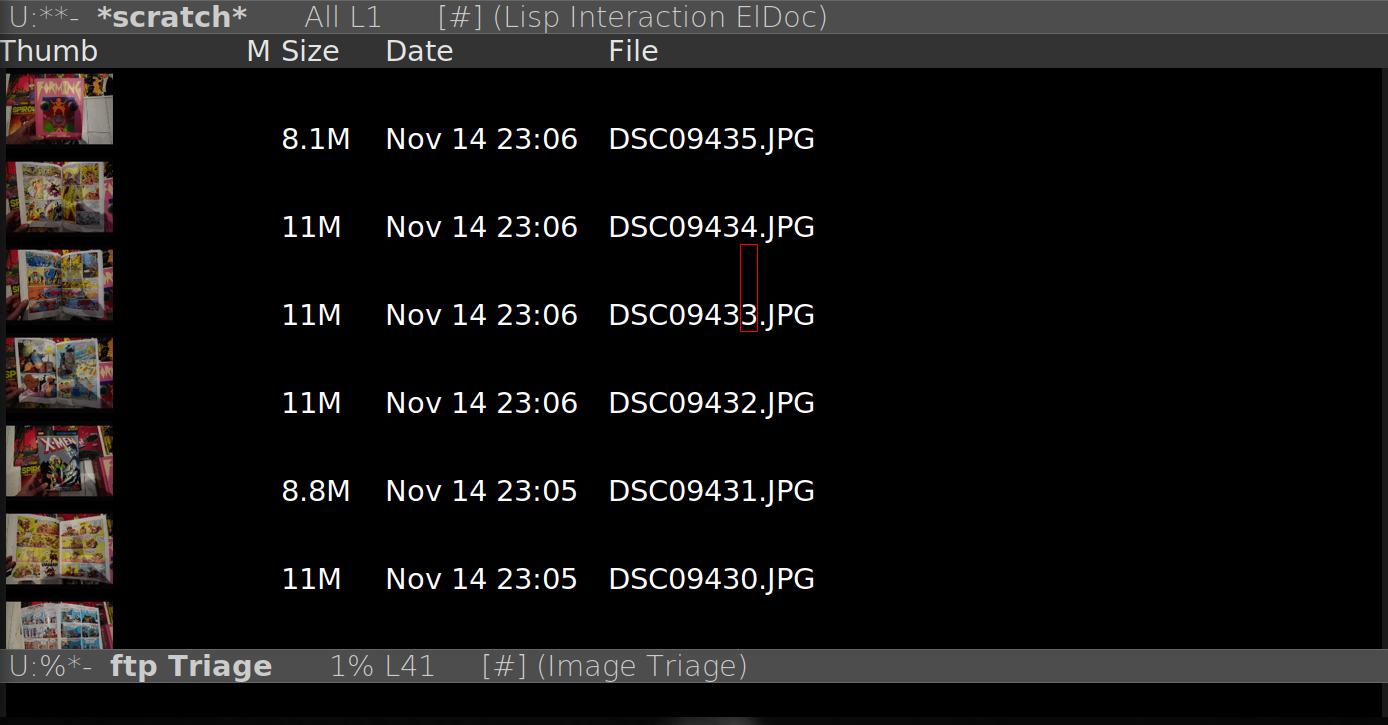
Whoa. No, those li’l images haven’t been resized and cached (like image-dired does) — they’re just extracted from the exif metadata: All modern cameras store a thumbnail inside the images. So I’m just extracting them and displaying them on-the-fly. As you can see from the screencast there, it’s so fast that even if I jump randomly around in the buffer, it keeps up.
(It inserts thumbnails for the lines displayed in the window, and then the next and a half window’s worth, thinking that you’re presumably going to scroll down. And then whenever you move around, it insert the thumbnails for the page you’re currently watching. So we’re not wasting preciouses electricity on things that are never going to be shown — my test directory here has 8K images.)
If the images don’t contain thumbnails, the new mode does things the hard way — by calling convert to scale the images down. This is, of course, a lot slower, but things run asynchronously, anyway, so the UX is UXing, as they say.
(What’s that? They don’t? They don’t say that? They should!)
But what about looking at the pictures in full, then? That’s as slow as before, surely?
Let’s have a look at what’s in the JPEG:
larsi@corrigan:/home/sony/ftp$ exiftool -json -a -G1 -s -preview:all DSC09471.JPG
[{
  "SourceFile": "DSC09471.JPG",
  "IFD1:ThumbnailImage": "(Binary data 7453 bytes, use -b option to extract)",
  "MPImage2:PreviewImage": "(Binary data 287215 bytes, use -b option to extract)"
}]
There’s a 1616×1080 “preview” image embedded in there, too!
(Side note — amusing JSON format here, with the size of the image (in bytes) embedded in a string. Which also includes helpful command line options. Such JSON.)
So:
Emacs displays these previews so fast without doing any magic that it refreshes faster than I can hit n.
If there are no thumbnails, the mode precomputes the next dozen images, so you only see the slowness if you never take any pauses. Lay off that n finger, man! Not cool!
(Or rather, it will do that tomorrow — my fingers got too tired from typing all day long…)
In addition, the new mode also allows looking at entire hierarchies with M-x image-triage-tree, which is useful when doing image archaeology.
The useful Dired commands are present in this mode, too — you can mark images (both from the listing view and the per-image buffer), and then copy them over somewhere. (This was the main reason I wrote this — I had a bunch of old images I wanted to go over and copy over the useful ones (therefore the name image-triage).)
(defvar-keymap image-triage-list-mode-map
  "RET" #'image-triage-display-image
  "SPC" #'image-triage-list-toggle-mark
  "m" #'image-triage-list-mark
  "U" #'image-triage-list-unmark-all
  "u" #'image-triage-list-unmark
  "g" #'image-triage-list-reload
  "v" #'image-triage-list-view-in-dired
  "C" #'image-triage-list-copy
  "D" #'image-triage-list-delete
  "s" #'image-triage-list-toggle-sort)
It’s not feature complete yet, I guess… but seems to work fine for my use case, at least.
And I wrote the mode by hand! So there! Except that I got Claude to write a helper command in C to dump thumbnails, because exiftool is just too slow:
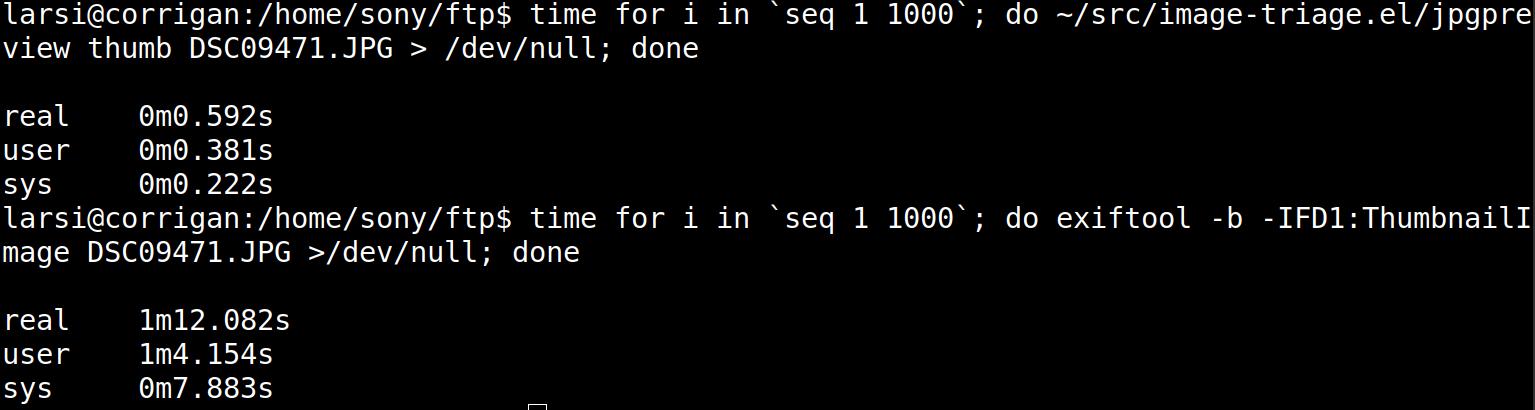
So the new C programme uses half a millisecond to extract the thumbnail. exiftool uses… er… let’s see… carry the one… 0.072s to do it. Is that right? Yeah, I guess — exiftool is a Perl script, after all. So the C program is… 144x faster. 🫠
Now you’re asking yourself — hasn’t somebody already written a thumbnail extractor that you can just apt install instead? Yes, exiv2 exists and is fast… but can only extract thumbnails, and not previews. And! It can’t extract to stdout — it insists on writing to the same directory as the image is in, so it’s a pain to deal with. So whatchagonnado.
(Typical Linux situation — one solution that’s general but slow, and one solution that’s fast but outdated and awkward to use.)
But I understand many people are opposed to using LLMs, so you don’t need to compile the extra binary. In that case, things look like this:
Not as impressive, but I guess it’s usable — it’s asynchronous, after all.
So there you go.
I’ve put the code on Microsoft Github, so you can give it a whirl if you want.